
Display a Google or Microsoft Office365 Outlook calendar.
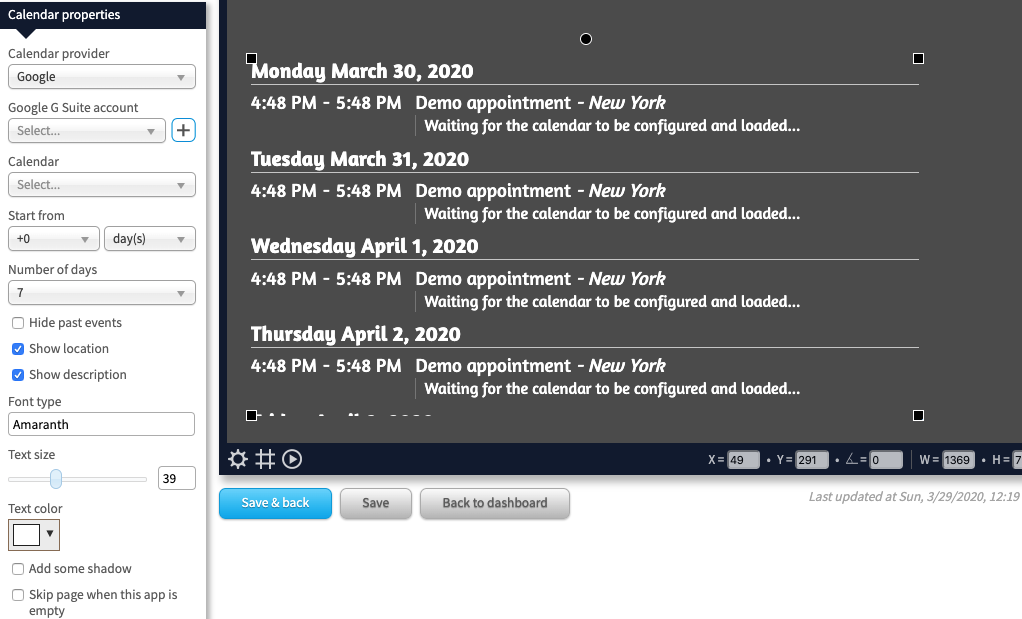
Properties
You can configure the app using the following properties:
| Property | Explanation |
|---|---|
| Calendar provider | Select the type of calendar you want to include: a Google calendar or a Microsoft Office365 Outlook calendar. |
| Google Chrome account | (Only for calender provider “Google”) The Google Chrome account of which you like to access the calendar. Add an account by pressing the + button. |
| Microsoft account | (Only for calender provider “Microsoft”) The Microsoft Office365 account of which you like to access the calendar. Add an account by pressing the + button. |
| Calendar | Oftentimes an account has access to multiple calendars. Select the calendar you like to display the events of. In case of a Microsoft calendar, this will also show the list of room resources in your Office365 account. This allows you to show the occupation of a room. Note that your Microsoft account needs to be configured as a delegate for the relevant room resource (in Office365) in order for you to have access to its calendar. |
| Start from | Sets the number of days or weeks you like to “look into the future”. E.g. +2 days means show appointments from the day after tomorrow onwards. |
| Number of days | Sets the number of days you like to display events of. So if today is May 3rd and, “start from” is set to +2 days and “number of days” is set to 5, then today the app will show all evens between May 5th and May 9th. |
| Show from | (Only when “start from” is set to “week(s)”) Sets the day in the week from which you like to see the events, e.g. starting from Monday. |
| Week starts at | (Only when “start from” is set to “week(s)”) Configure what the app is to consider the start of a new week (e.g. Sunday or Monday). |
| Hide past events | Makes sure that past events are not shown. |
| Show location | Also shows the location of the event (when present). |
| Show description | Also shows the description of the event (when present). |
| Skip page when this app is empty | When enabled, the page this app is on will be skipped during playback when this app has no data to show. |